

Thermal Printer Not Printing?
7 Easy Fixes You Can Try Now
If your thermal printer is not printing, the most common causes are incorrect paper loading, a dirty print head, incompatible media, or driver and connection issues.
Most blank-print and faint-print issues can be fixed quickly with a few basic checks.
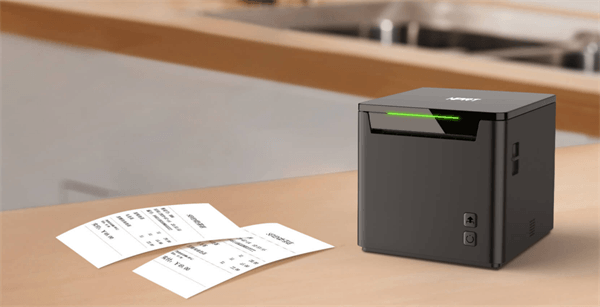
Quick Answer: Check These First
- ● Reload the paper correctly
- ● Clean the print head
- ● Confirm the correct paper or label type
- ● Check the printer settings and driver
- ● Test the USB, Bluetooth, or network connection
This guide covers the fastest fixes for blank labels, faint receipts, and other common thermal printer problems.
How a Thermal Printer Works
Thermal printers do not use ink or toner.
- Direct thermal printers print by heating heat-sensitive paper.
- Thermal transfer printers print by heating a ribbon that transfers ink onto labels.
That is why a thermal printer not printing problem usually comes down to one of three things: media, heat, or communication.
1 Check Power, Connection, and Paper First
Start with the simple checks before changing settings or replacing parts.
What to check
- ●Power cable is connected securely
- ●Thermal printer light is on
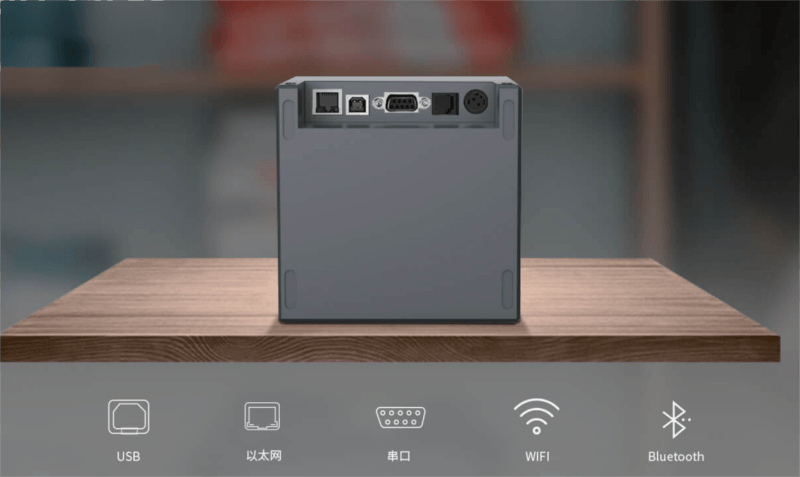
- ●USB, Ethernet, or Bluetooth connection is active
- ●Printer cover is fully closed
- ●Paper roll is loaded in the correct direction
Fast paper test:
Scratch the paper with your fingernail.
If it turns dark, that is the printable side.
Fix: Reload the thermal paper so the printable side faces the print head.
This is one of the most common reasons a thermal receipt printer is not printing.
2 Clean the Thermal Print Head
The print head is the component that applies heat to create the image. If it is covered with paper dust, adhesive residue, or label coating buildup, heat transfer becomes uneven and print quality deteriorates, resulting in:
- blank printing
- faded print
- missing areas
- unclear text
How to clean a thermal printer head
- 1. Turn off the printer and unplug it.
- 2. Open the cover and locate the print head.
- 3. Use a lint-free swab, cloth, or cleaning pen with high-purity (90% or higher) isopropyl alcohol.
- 4. Gently wipe away residue or adhesive build-up from end to end.
- 5. Let it dry completely before printing again.
Best practice: Based on HPRT’s experience with thermal label and receipt printers , the print head should be cleaned regularly, especially when printing:
- ●sticky labels,
- ●high volumes every day,
- ●or in dusty warehouse or retail environments.
3 Verify the Paper Type and Paper Quality
Many thermal printer problems are not caused by the printer itself, but by the media.
Check the media type:
- ●A direct thermal printer needs direct thermal paper or labels.
- ●A thermal transfer printer needs a compatible ribbon and label stock.
Common media problems:
| Problem | Possible Cause | Fix |
|---|---|---|
| Blank print | Wrong media type | Use direct thermal paper for direct printers |
| Faded print | Old or low-quality paper | Replace with high-quality media |
| Uneven print | Damaged roll or humidity | Use a fresh roll stored properly |
| Smudges or over-dark output | Excessive darkness setting | Lower print density |
Always match the media type to the printer technology, and use high-quality paper, labels, or ribbons whenever possible.
4 Check Printer Settings on Your Computer or POS System
Sometimes the printer is working properly, but the software settings are wrong.
Check these items first:
- ●Go to Devices and Printers on your PC.
- ●Right-click your thermal printer and open Printer Preferences.
- ●Confirm the correct paper size and darkness settings.
- ●Test print a configuration page from the printer's menu.
If the test page prints correctly but your software output does not, check the driver compatibility or label format settings in your POS or printing app.
5 Update or Reinstall the Printer Driver
Outdated or corrupted drivers can cause thermal printers to print blank pages—or nothing at all.
Driver fix steps
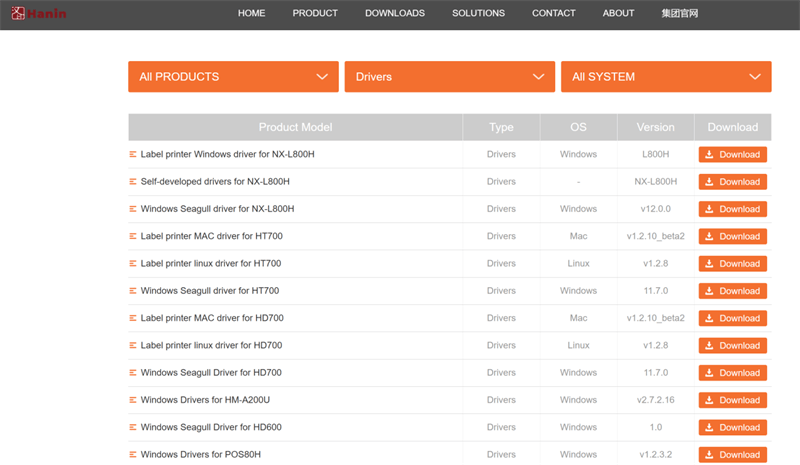
- ●Go to the printer manufacturer’s official website.
- ●Download the latest driver for your model.
- ●Remove the old driver and install the new one.
- ●Restart both the printer and the computer.
In many cases, reinstalling the correct driver can restore normal printing quickly.
HPRT’s support guidance for desktop printers recommends downloading the correct Windows printer driver and setup utilities from the official support page.
When to prioritize this step
Do this first if:
- • the problem began after a Windows update,
- • the printer was moved to a new PC,
- • or the printer shows as connected but ignores print jobs.
6 Check Communication Ports and Network Settings
If media and settings look correct, the next step is communication.
For USB printers
- • Try another cable
- • Try a different USB port
- • Avoid unstable hubs
For Ethernet or network printers
- • Confirm the printer IP address
- • Match the IP in software
- • Make sure the printer and computer are on the same network
For Bluetooth printers
- • Remove old pairings
- • Re-pair the device
- • Confirm that another terminal is not already connected
Fix: Restore the connection first, then send a new test print.
7 Watch for Overheating or Hardware Failure
If the printer works for a while and then stops, overheating may be the cause.
Signs of overheating or hardware wear:
- • printer stops during long print runs
- • output becomes inconsistent
- • blank printing continues after cleaning
- • print quality does not improve after media replacement
What to do:
- • Turn off the printer for 10 to 15 minutes
- • Improve ventilation
- • Reduce continuous print load
- • Inspect for worn print head or internal failure
Fix: If the same issue keeps returning, the printer may need thermal printer repair or replacement.
Quick Troubleshooting Checklist
If your thermal printer is not printing, follow this order:
This sequence covers most thermal printer problems.
When to Replace Your Thermal Printer
Even with regular maintenance, every thermal printer has its limits. If you notice frequent jams, overheating, poor alignment, or repeated blank printing even after servicing, it may be time for a replacement.
For businesses that depend on reliable daily printing, choosing a more stable thermal printer can help reduce downtime and keep operations running smoothly.
HPRT Thermal Receipt Printers for Reliable Daily Use

HPRT is a trusted printer manufacturer in China, known for combining innovation, precision engineering, and consistent product quality. Designed for continuous commercial use, HPRT thermal receipt printers provide the reliable performance, clear printing, and dependable connectivity that modern businesses expect.

HPRT thermal receipt printers are widely applied in retail, hospitality, logistics, healthcare, and self-service environments. They support receipt printing, queue management, billing, order processing, and transaction recording—helping businesses improve efficiency, reduce wait times, and keep operations running smoothly.
Key Takeaways
Most thermal printer not printing issues are related to paper loading, print-head condition, media type, settings, or connection.
Start with simple checks—paper direction and print-head cleaning—then verify settings, driver, and connectivity. If the problem persists, the printer may require repair or replacement.
FAQs About Thermal Printer Issues
Q1: Why is my thermal printer printing blank labels?
The most common reason is incorrect media loading. Make sure the printable side of the paper faces the print head and that you are using compatible thermal paper or labels.
Q2: How do I clean a thermal printer head?
Turn off the printer, open the cover, and clean the print head with a lint-free swab or cloth and high-purity isopropyl alcohol. Let it dry completely before printing again.
Q3: Why is my thermal printer not printing clearly?
This is usually caused by a dirty print head, low-quality paper, incorrect darkness settings, or worn components.
Q4: Why does my printer won’t print from my POS system?
If the self-test works but the software print job fails, the issue is usually the driver, paper size, port, or application configuration.
Q5: When should I replace instead of repair a thermal printer?
If the unit overheats often, keeps printing blank labels after full troubleshooting, or has a worn print head or internal hardware fault, replacement may be more cost-effective than repair.
Q6: How do I know if my thermal printer print head is damaged?
Signs of a worn or damaged print head include persistent blank areas, uneven printing, or missing lines even after cleaning and replacing paper.
Q7: Why is my label printer only printing half of the label?
This is usually caused by incorrect label size settings, misaligned sensors, or mismatched media configuration in the printer driver.
Q8: Do all thermal printers require special paper?
Yes. Direct thermal printers require heat-sensitive paper, while thermal transfer printers require ribbons and compatible labels. Using the wrong media will result in printing issues.